Expense tracker for iPhone and Android
Five seconds,
then done.
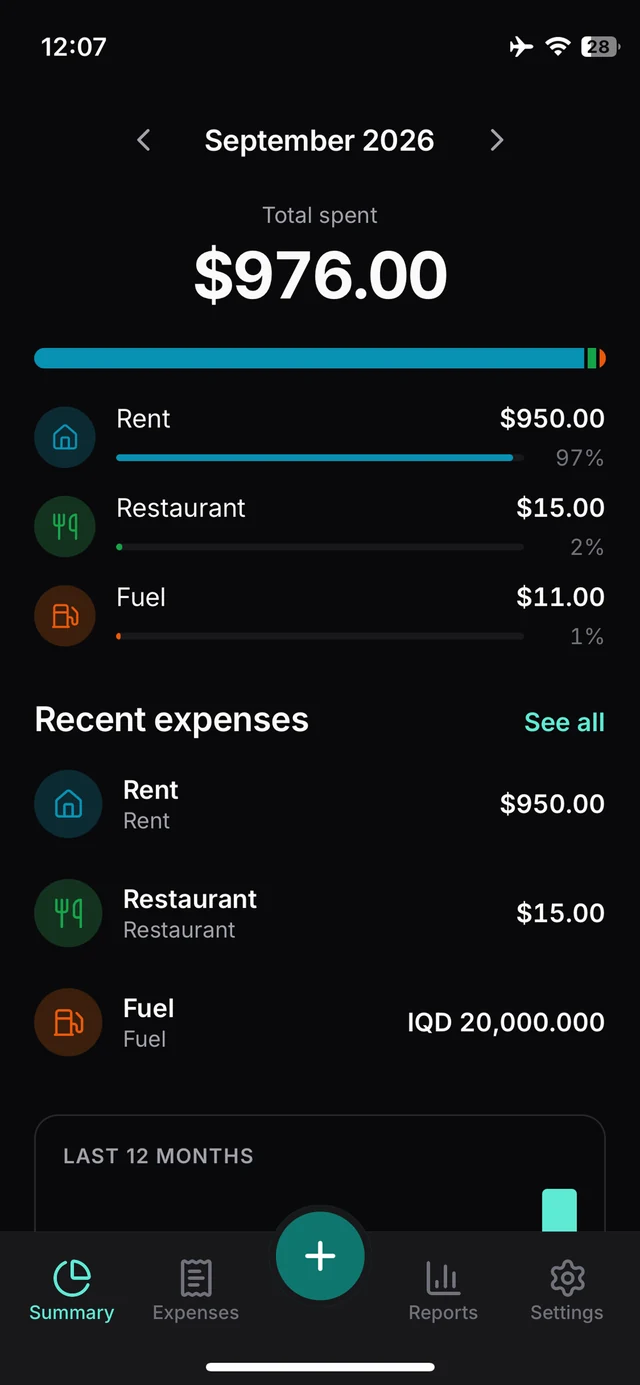
Tick is an expense tracker built around one number. That is how long it should take to open the app, log what you just spent, and put the phone back in your pocket.


14-day free trial, no card needed.
- Works offline
- 30 currencies with ECB rates
- Manual entry, no bank sync
- CSV and PDF export
- 76 categories in 11 groups
- English and Türkçe
How it works
The five-second flow
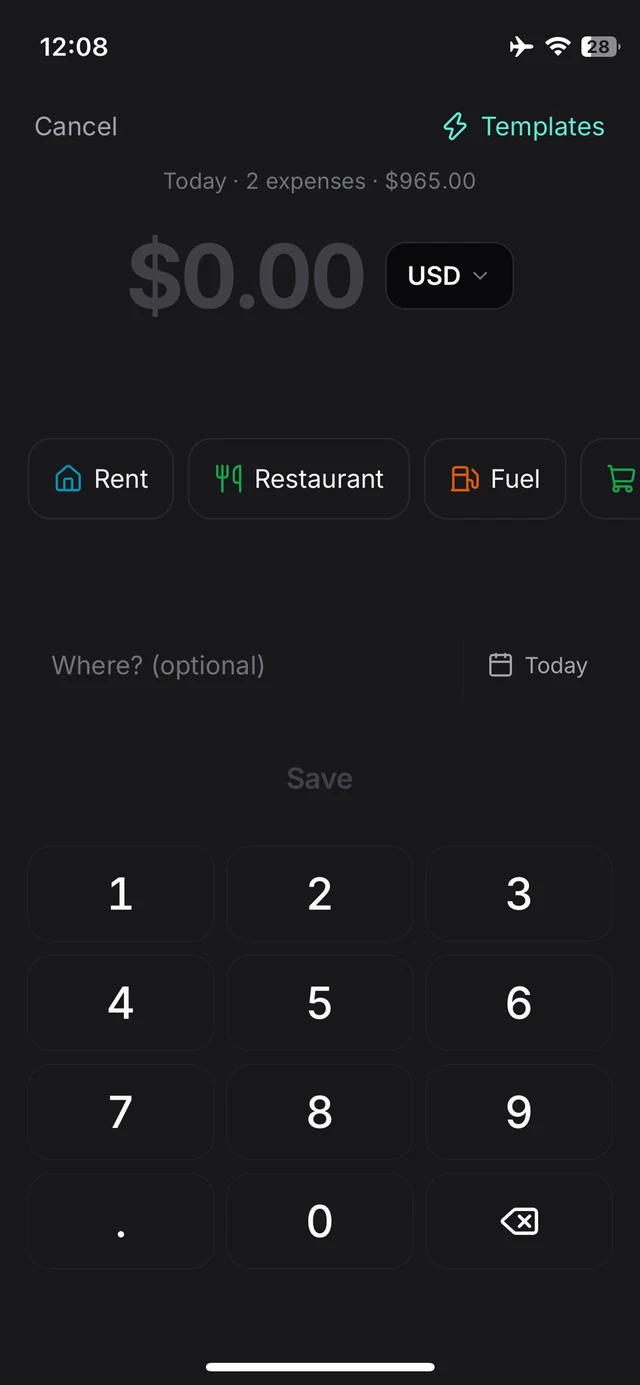
Logging an expense is designed to take about five seconds, and Quick Add is built for exactly that. The amount is the only field Tick needs.
-
Type the amount
It is the only required field, and the keypad is already on screen. Paid in another currency? Switch it right beside the amount.
-
Pick a category, or don’t
The category chips put the ones you use most first. Place, note, tags and a photo of the receipt are optional too, and can be added later.
-
Save
The expense is written to the phone first, signal or not, and syncs when there is a connection.
Multiple currencies
Multiple currencies, done properly
Log in whichever currency you just paid in. The rate is frozen onto that expense as you save it, so last year’s report never changes because a rate moved this morning.
Rates for thirty currencies come from the European Central Bank’s daily reference feed. For any other currency, type the rate in yourself. Tick will not invent one.
- AUD
- BRL
- CAD
- CHF
- CNY
- CZK
- DKK
- EUR
- GBP
- HKD
- HUF
- IDR
- ILS
- INR
- ISK
- JPY
- KRW
- MXN
- MYR
- NOK
- NZD
- PHP
- PLN
- RON
- SEK
- SGD
- THB
- TRY
- USD
- ZAR
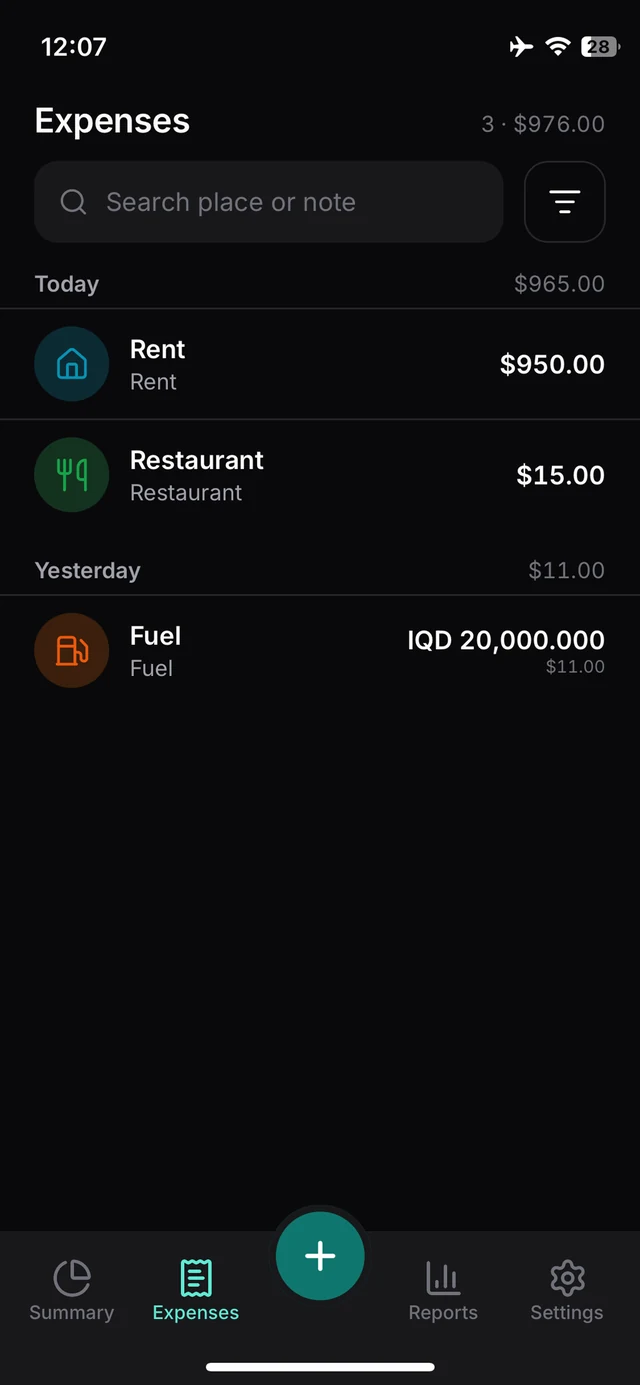
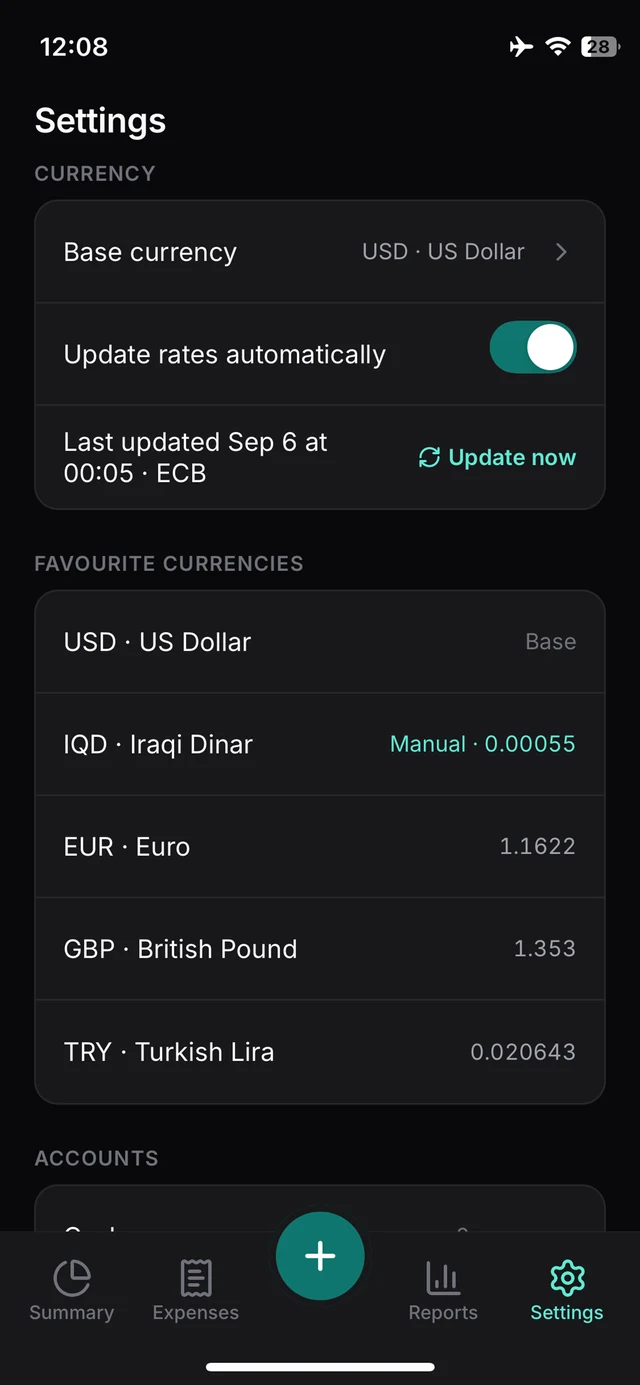
Fuel paid in Iraqi dinar. The dinar is not one of the thirty, so its rate was typed in (Settings marks it Manual), and the list shows the dollar equivalent under the amount.
Offline-first
Offline is the default, not a fallback
Every expense is written to the phone first, and syncing is something that happens afterwards rather than something you wait for.
One expense, with or without a signal
-
You tap Save
The expense is written to the phone.
-
No signal
You keep logging. Nothing waits for a connection.
-
Back online
It syncs. Nothing has to be typed twice.
A plane, a basement, a train through a tunnel, a building with thick walls, a country where your data plan stopped working at the border: none of it stops you logging an expense. Nothing has to be re-entered when the signal comes back. The record was already saved; the connection only moves it.
Reports and export
Reports that answer a question
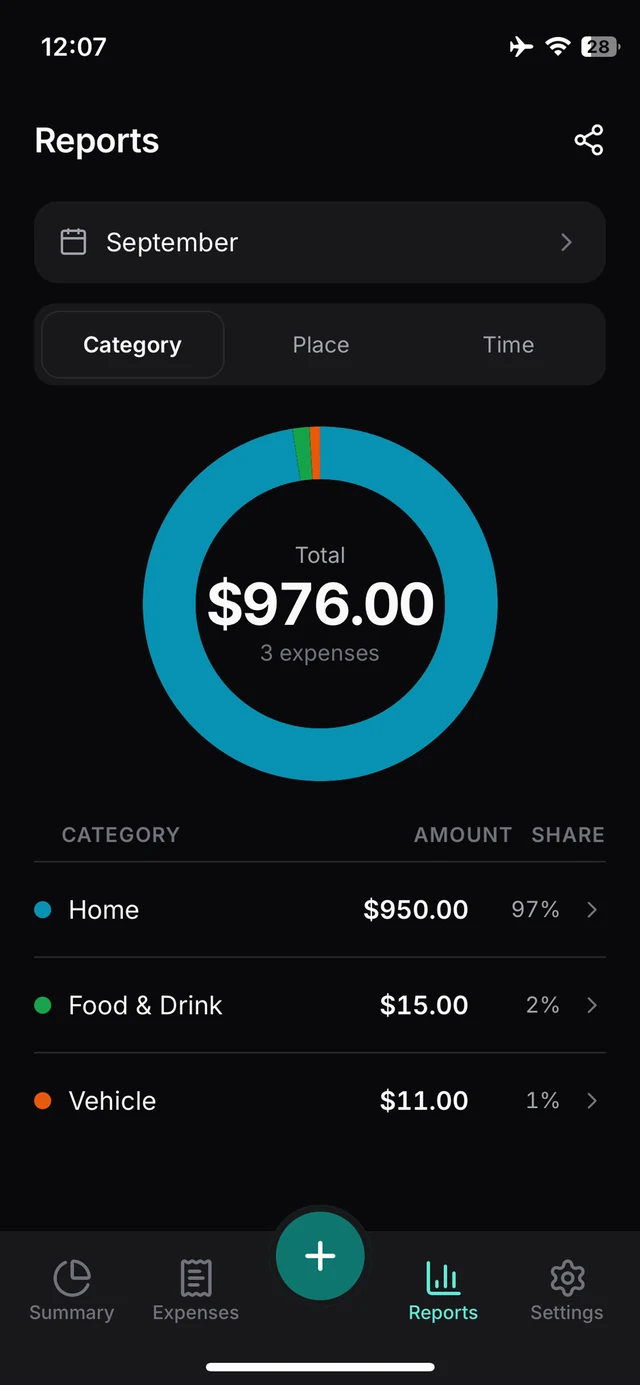
Narrow the expense list by date, category, currency or amount, or search it by place and note. Then see where the money went by category, by place, or over time.
Export to CSV for a spreadsheet, or to PDF for something you can send or file. Export from a report and the date range you are looking at comes with it; export from Settings and everything does, as CSV.
- Date
- Amount
- Currency
- Rate
- Base amount
- Rate source
- Group
- Category
- Place
- Account
- Tags
- Note
Ready for daily life
Categories, templates and shortcuts
Forty-three categories are switched on the first time you open Tick: groceries, rent, electricity, fuel, public transit, office rent, pharmacy and taxes among them. Another thirty-three wait in the list, switched off. Add your own, and hide the ones you never use.
- Templates. A template fills in the category, the place and the currency, so the thing you buy every morning is a number and a save.
- Home-screen shortcuts. Long-press the Tick icon for shortcuts that open straight into a new expense, built from the categories you actually use.
- Food & Drink 6
- Home 12
- Vehicle 9
- Transport 4
- Office & Business 9
- Health & Fitness 7
- Shopping 6
- Personal & Education 7
- Leisure & Travel 7
- Finance & Taxes 8
- Other 1
43 switched on at first launch, 33 more to switch on when you need them.
By design
What Tick is not
Every expense in Tick is there because you typed it.
That is a deliberate limit rather than a gap. An expense you typed is an expense you saw, which is why the photo of the receipt is an attachment to a record you already made, and not the thing the record is guessed from.
- No bank connection
- No transaction import
- No receipt scanning that reads your card number
- No approval workflows
- No team accounts
Pricing
What it costs
Your records stay yours whether you subscribe or not. The App Store and Google Play show the price in your own currency before you subscribe.
-
When you sign up
Free trial
The first 14 days after you create your account are free and ask for no card.
-
After the trial
A subscription to keep adding
Adding new expenses needs a subscription. It lives in your Apple or Google account, and you cancel it there.
-
Always
Viewing, reports and export
They keep working without a subscription, permanently.
FAQ
Common questions
My currency has no exchange rate
The rate source publishes thirty currencies. For any other one, Tick asks you to type the rate in. It will not guess, because a guessed rate would quietly make every report wrong.
How do I get my data out?
The share button on Reports exports the date range you are looking at, as CSV or PDF. Settings → Export & backup exports everything as CSV, one row per expense in twelve columns. Export works whether or not you have a subscription.
What happens when the free trial ends?
Adding new expenses needs a subscription. Viewing, reports and export keep working without one, permanently.
How do I cancel?
Through your Apple or Google account, where the subscription lives. Cancelling stops the next renewal and leaves the current period running to its end.
How do I delete my account?
In the app: Settings → Account & sync → Delete account. Without the app, use the account deletion page. Either way it is immediate and permanent.
Try it on your next expense.
Free for 14 days, no card needed. For iPhone and Android, in English and Türkçe.